Lesson 3

Getting the most out of your AI tools

Set them up, link them to your notes, see how they work and ask them well

Where we are

Lesson 3 of 12: Getting the most out of your AI tools

01 · Done

Introduction to Generative AI

Mon 9 Nov · 08:40, 10:20

02 · Done

AI for you: making it work in your day

Tue 10 Nov · 08:40, 10:20

03 · You are here

Getting the most out of your AI tools

Wed 11 Nov · 08:40, 10:20

04

How AI systems work

Wed 18 Nov · 14:20

05

AI at work and in teams

Wed 18 Nov · 16:20

06

Spotting AI opportunities

Fri 20 Nov · 08:40, 10:20

07

Practical business with AI

Mon 23 Nov · 08:40, 10:20

08

Ethical AI and what AI costs

Fri 27 Nov · 14:20, 16:20

09

Building with AI

Mon 30 Nov · 12:40, 14:20

10

Build and pitch prep

Fri 4 Dec · 08:40, 10:20, 12:40, 14:20

11

Final presentations

Tue 8 Dec · 08:40, 10:20

12

Reflection and final Q&A

Wed 9 Dec · 08:40, 10:20

Recap

In lesson 2, our main objective was to:

Make AI work for you, starting with your own problems

What we covered

What stays the same

Tools change fast. Start from the need, not the tool.

Expectations vs reality

AI is brilliant at some tasks and poor at others that look just as hard.

Good problems for AI

Pick tasks that repeat, follow a pattern and are easy to check.

Where the information lives

AI can only help with what it can see. Keep your memory where you control it.

The risks

Giving AI access brings risks to privacy, security and ethics.

Lesson 3 · From Lesson 2

Upskilling: AI for you

Set up your AI tools, learn their parts, and start a second brain

From Lesson 2 · Part 1

Set up your AI tools

Pick one, sign up, and learn its four parts

Set up your AI tools

Pick your AI tool

ChatGPT

By OpenAI

  • The most used chat assistant
  • Images, voice and web search
  • Custom assistants called GPTs

chatgpt.com

Claude

By Anthropic

  • Long documents and careful writing
  • Artifacts: documents and small apps beside the chat
  • Strong at code

claude.ai

Gemini

By Google

Currently only Enterprise has access to custom connectors

gemini.google.com

All three have a free plan with daily limits. Pick one to start; you can try the others later. Microsoft Copilot works too.

Yesterday: privacy

Check your privacy settings

Take two minutes. Open ChatGPT and check that the training opt-out is switched on.

https://chatgpt.com/#settings/DataControls

1

Click your profile picture, top right

2

Open Settings, then Data controls

3

Turn off Improve the model for everyone

Improve the model for everyone

Off means your chats are not used for training

i

Side note

Opting out stops training. It does not stop people, such as researchers, from reviewing your chats.

The parts of an AI app

Four things to know in any AI tool

Assistant

The everyday AI you chat with

e.g. Ask a question, get an answer

ChatGPT · Claude · Gemini

Project

A folder of chats that shares files and instructions

e.g. A course: its syllabus, slides and your notes

ChatGPT and Claude: Projects

Artifact

Something it makes for you, beside the chat

e.g. A revision plan you can edit

Claude: Artifacts · ChatGPT and Gemini: Canvas

Connector

A bridge to your other apps

e.g. Read your calendar, add a task

Also called apps

Part 1 of 4

What is an assistant?

The everyday AI you chat with. You ask, it answers, using what it learned from public text.

Good for questions, drafts and ideas

It knows nothing about you until you tell it

Each new chat starts from scratch

Next: what happens when AI can act, not just answer?

New chat

Explain what a large language model is, in two sentences.
It is an AI trained on huge amounts of text to predict the next word. That lets it answer questions, write and summarise in plain language.

Ask anything…

Going further

What is an AI agent?

Brain

The LLM: understands, plans and decides

Connectors

Data it can reach

· Email

· Files

· Calendar

Permissions

Actions it may take

· Send a message

· Add a task

· Search the web

Legs: in the future, robotics

Part 2 of 4

What is a project?

A folder for chats. Every chat inside it shares the same files and instructions, so you do not have to explain yourself again.

Add files once: research, drafts, readings

Set instructions once: how it should help

Every new chat starts with that context

Next: make one for your own course.

S

← All projects

Tidewell pitch

Our start-up pitch for the course competition

How can I help you today?

Claude

Sharpen our problem statement

Last message 2 hours ago

Questions investors might ask

Last message yesterday

Shorten the pitch to two minutes

Last message 3 days ago

Project knowledge

Instructions

Edit

Act as a tough investor. Give short, honest feedback on our pitch.

Market research

PDF

Pitch deck draft

PPTX

Customer interviews

DOCX

Judging criteria

PDF

4% of project capacity used

Try it · 5 minutes

A project for your course

01

Open Projects in Claude or ChatGPT and make a new one.

02

Name it after a course: Principles of Business, Economics and Management.

03

Add the syllabus and the lecture slides.

04

Add instructions: “Help me learn. Explain simply, then quiz me.”

05

Start a chat: “Explain supply and demand, then quiz me.”

Every chat in it now knows your course.

Principles of Business, Economics and Management

Instructions

Help me learn. Explain simply, then quiz me with three questions. Do not do the work for me.

Files

Syllabus.pdf
Week 1 slides
Week 2 slides
My notes

Chats

Explain supply and demand
Quiz me on Week 1
Plan my revision week

Part 3 of 4

What is an artifact?

Something the AI makes that sits beside the chat, so you can see it, change it and share it.

A document, table, diagram, quiz or small app

Edit it by asking, or by hand

Copy, download or share it when it is ready

Claude calls these artifacts. ChatGPT and Gemini call it Canvas.

Tidewell pitch one-pager

Turn our interview notes into a one-page pitch summary.

Here is a one-page summary built from your notes. I kept it to the problem, the fix and the numbers.

Tidewell: one-page pitch

Document · Click to open

Reply to Claude…

Tidewell: one-page pitch

Publish

Tidewell

Fresh tide times and safety alerts for small boat owners

The problem

8 of 12 owners we interviewed check three or more apps before going out.

Our fix

One simple app with local tides, weather and warnings in plain language.

The ask

€40,000 to launch on two coasts this spring.

Try it · 5 minutes

Make your own artifact

01

Ask: “Make a revision plan for my three exams, as a table I can edit.”

02

In ChatGPT or Gemini, choose Canvas first.

03

Change it by asking: “Move statistics to the mornings.”

04

Copy or download it when it is ready.

Then try a quiz or a small app.

Make me a revision plan for my three exams
Here is your plan. You can edit it on the right.

Revision plan

DayMorningEvening
MonStatisticsRest
TueMarketingQuiz
WedAIStatistics
ThuMarketingRest
FriAIQuiz
SatMock examRest
DocumentTableDiagramSmall appQuiz

Part 4 of 4

What is a connector?

A bridge that lets your AI read from, and act in, your other apps. Remember: where does the information live?

Answers use your real information, not guesses

It can act for you: add a task, draft an email

Only connect what you need, and check what it can see

Your AI app

Gmail

Calendar

Drive

Notion

Humble

Lesson 3 · From Lesson 2

Building your very own second brain

A place for your thoughts, tasks and everything you want to remember

Your second brain

What’s a second brain?

One place for your thoughts, tasks and anything you want to remember. Your AI connects to it.

Many AIs. One brain.

Your second brain

Your thoughts

Your tasks

Anything to remember

Humble

ChatGPT

Its own memory

Claude

Its own memory
?

Your next AI

Its own memory

An existing tool

What about using something like GitHub?

GitHub

Claude

ChatGPT

Yep. AI can read it and write to it.

But…

Code tools have limits

?

Can people use it too, not just AI?

?

How do I share it without giving away everything?

?

What if different people need different levels of access?

Connectors

How do I connect a tool?

01

Log in to the tool

You need your own account with the tool, such as Gmail, Notion or Humble.

01

Log in to the tool

You need your own account with the tool, such as Gmail, Notion or Humble.

02

Set up the connector

In your AI app, add the tool from its list of connectors, or paste its address.

02

Set up the connector

In your AI app, add the tool from its list of connectors, or paste its address.

03

Allow the permissions

The tool asks what your AI may see and do. Only allow apps you trust.

Sign in to your account
you@student.ism.lt
••••••••
Sign in

Good to know: the tool only sees what your AI sends to it. Your AI can see the information in the tool.

Quick demo

Claude, meet my Humble

Starting with personal utility

Quick demo · Without a connector

Claude knows nothing about my class

It cannot see my notes, so it can only guess, or ask me to paste them in.

Claude

What did we cover in our last lecture of my AI class? Quiz me on it.

I don’t have access to your class materials or lecture notes, so I can’t tell what was covered. If you paste your notes or slides here, I can quiz you on them.

Reply to Claude…

Quick demo · With a connector

Claude reads my Humble notes

01 · YOUR ACCOUNT

My Humble

02 · ALREADY IN MY HUMBLE

Lecture 1: why AI, why now

· AI is spreading faster than any technology

· AI is not magic

· Five types of AI

Added yesterday

CONTEXT

Request for context

Search notes: “last lecture”

Connector

Checks your permission, then passes it on

Allowed

Sent back to Claude

Lecture 1: why AI, why now

“AI is spreading faster than any technology… Five types of AI.”

Claude

What did we cover in our last lecture? Quiz me on it.
Searched your Humble notes

From your note “Lecture 1: why AI, why now”: AI is spreading faster than any technology before it, and there are five types of AI. First question: which type of AI creates new text?

Reply to Claude…

Hands-on · 15 minutes

Let’s try out using a connector

Get your laptops out

Set up a connector

In Humble

01Make your account

In Claude

02Open Customize
03Go to Connectors
04Add a custom connector
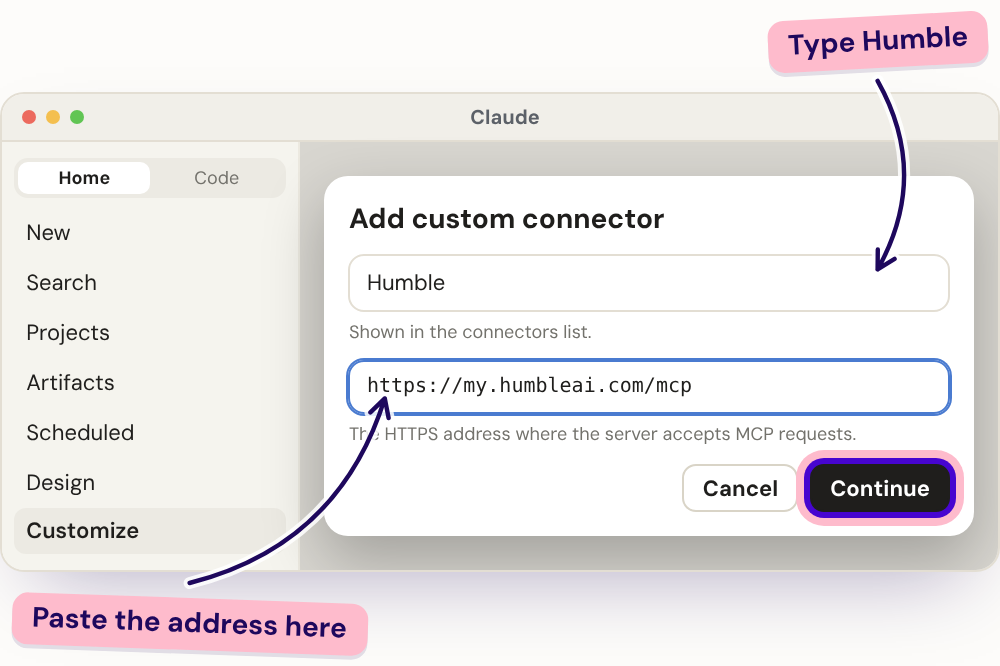
05Name it and paste the address
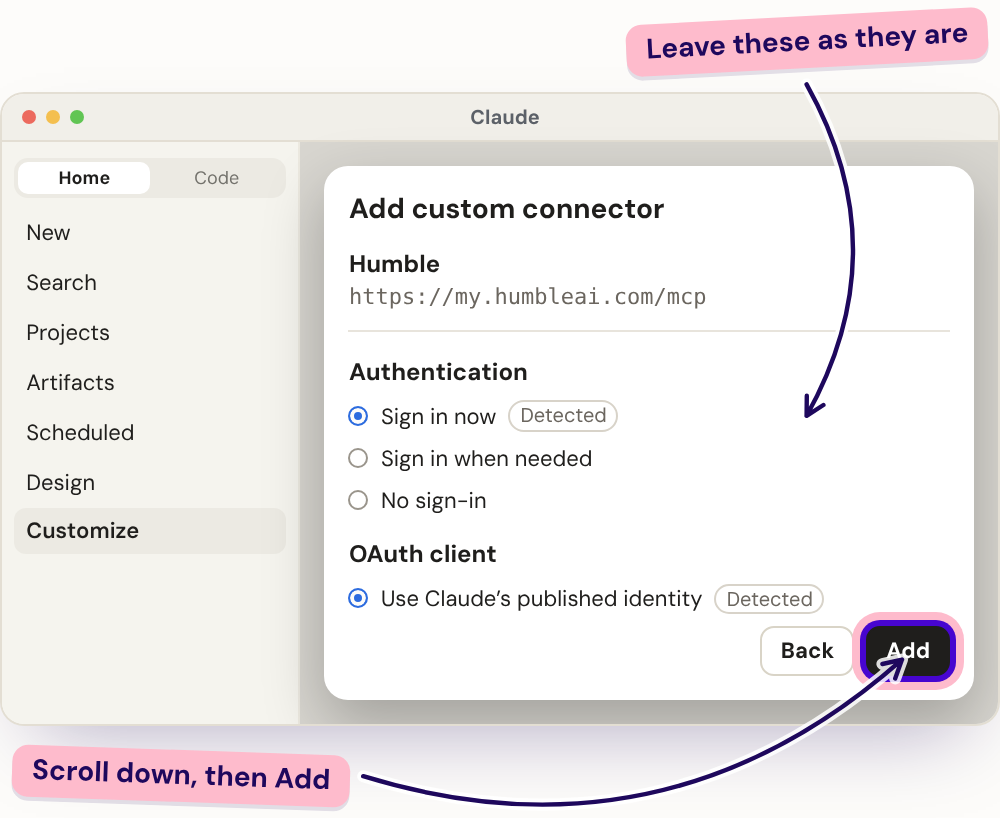
06Select Add
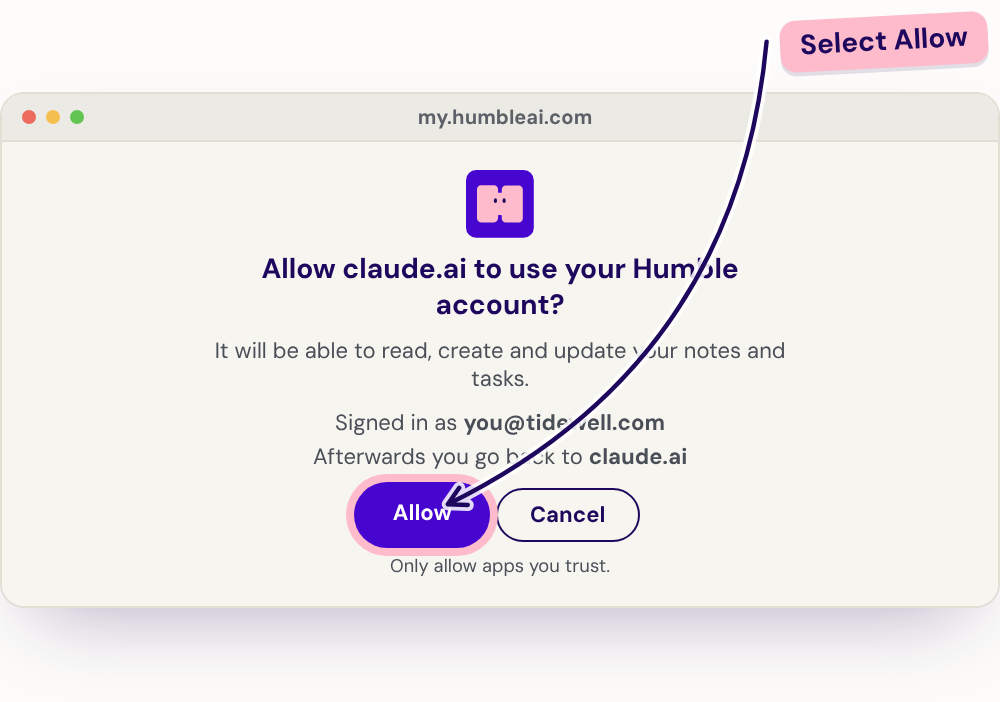
07Allow access

Try it

08Save your lecture notes
09Ask Claude about your notes

In Humble · Step 1 of 9

Go to my.humbleai.com on your laptop and sign up with your email.

my.humbleai.com

Free for 30 days, and you do not need a card.

Set up a connector

In Humble

Make your account

In Claude

02Open Customize
03Go to Connectors
04Add a custom connector
05Name it and paste the address
06Select Add
07Allow access

Try it

08Save your lecture notes
09Ask Claude about your notes

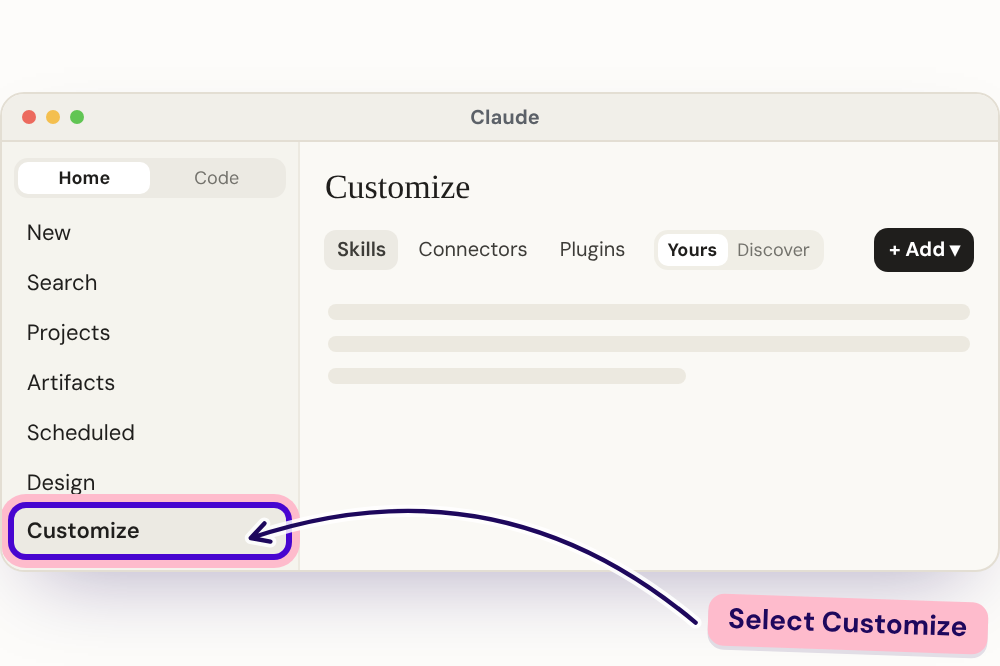
In Claude · Step 2 of 9

In Claude, select Customize in the sidebar.
Set up a connector

In Humble

Make your account

In Claude

Open Customize
03Go to Connectors
04Add a custom connector
05Name it and paste the address
06Select Add
07Allow access

Try it

08Save your lecture notes
09Ask Claude about your notes

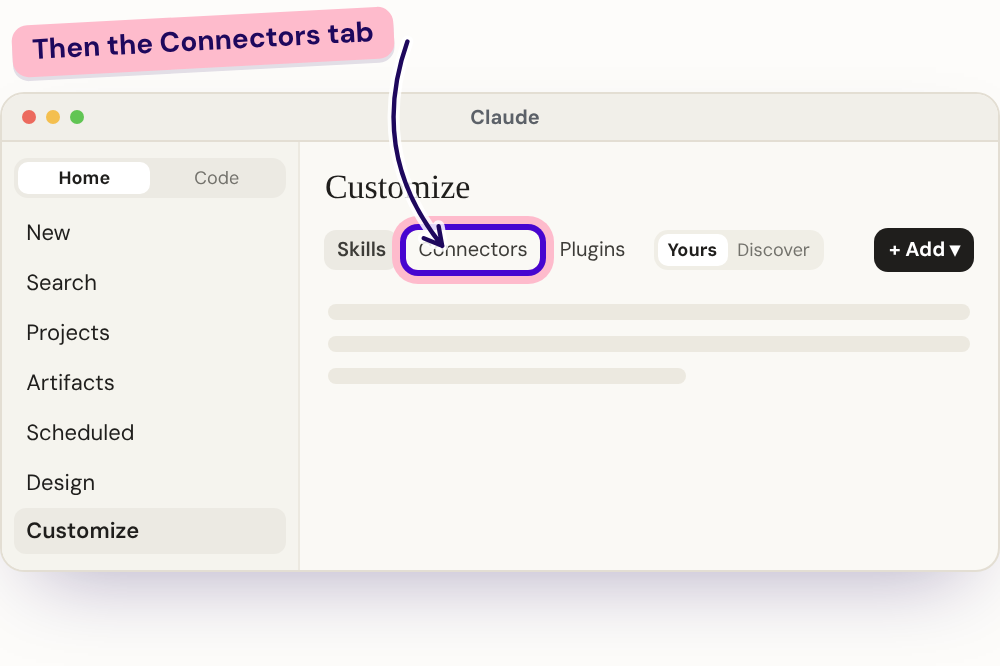
In Claude · Step 3 of 9

Under the big Customize heading, select the Connectors tab.
Set up a connector

In Humble

Make your account

In Claude

Open Customize
Go to Connectors
04Add a custom connector
05Name it and paste the address
06Select Add
07Allow access

Try it

08Save your lecture notes
09Ask Claude about your notes

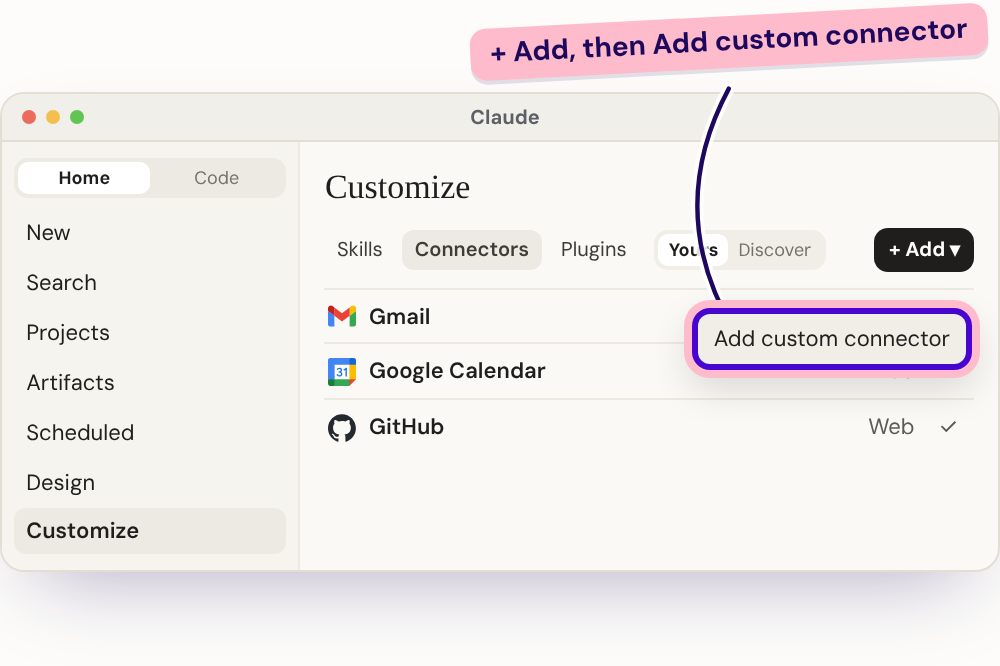
In Claude · Step 4 of 9

Select + Add, then Add custom connector. On the Free plan you can add one.

Set up a connector

In Humble

Make your account

In Claude

Open Customize
Go to Connectors
Add a custom connector
05Name it and paste the address
06Select Add
07Allow access

Try it

08Save your lecture notes
09Ask Claude about your notes

In Claude · Step 5 of 9

Type Humble as the name. Paste this address below it, then select Continue.

https://my.humbleai.com/mcp
Set up a connector

In Humble

Make your account

In Claude

Open Customize
Go to Connectors
Add a custom connector
Name it and paste the address
06Select Add
07Allow access

Try it

08Save your lecture notes
09Ask Claude about your notes

In Claude · Step 6 of 9

You do not need to change anything here. Scroll to the bottom and select Add.
Set up a connector

In Humble

Make your account

In Claude

Open Customize
Go to Connectors
Add a custom connector
Name it and paste the address
Select Add
07Allow access

Try it

08Save your lecture notes
09Ask Claude about your notes

In Claude · Step 7 of 9

Humble opens. Sign in if it asks, then select Allow. You go back to Claude.

Set up a connector

In Humble

Make your account

In Claude

Open Customize
Go to Connectors
Add a custom connector
Name it and paste the address
Select Add
Allow access

Try it

08Save your lecture notes
09Ask Claude about your notes

Try it · Step 8 of 9

Start a new chat in Claude. Paste this prompt, with your notes from Lecture 1 after it.

Save these notes as a note in Humble, called “Lecture 1: why AI, why now”:

Lecture 1: why AI, why now

New note in your Humble

· AI is spreading faster than any technology · AI is not magic · Five types of AI

Set up a connector

In Humble

Make your account

In Claude

Open Customize
Go to Connectors
Add a custom connector
Name it and paste the address
Select Add
Allow access

Try it

Save your lecture notes
09Ask Claude about your notes

Try it · Step 9 of 9

Start another new chat and paste in this prompt.

Search my Humble notes for my Lecture 1 notes. What were the main types of AI we covered? Quiz me with three questions, one at a time.

Claude finds your note in Humble, then quizzes you on it.

What else can I do?

That’s cool, but what else can it do?

Try each one: copy the prompt into Claude, then look in your Humble.

Add a note

Add a note

Find your tasks

Find your tasks

Research and link

Research and link

Schedule a daily tidy-up

Add a note

01 / 04

Save the main points from this chat as a note in Humble, called “Lesson 2: AI for you”. File it in a folder called “ISM Essentials of AI”, and make the folder if it does not exist yet.

Humble makes the folder for you if it is new.

Find your tasks

02 / 04

Look at my recent chat conversations. Tell me the tasks I likely still have to do, as a list. Ask me to confirm, then create the ones I choose as tasks in Humble.

Your AI app needs to be able to search your past chats.

Research and link

03 / 04

Research Mahdi Shariff, co-founder of Humble AI, an AI tool that helps you organise your life as a personal second brain. He is also my teacher at ISM. Save what you find as a note in Humble and add him as a contact. Find his LinkedIn profile and link it to both, then link the note to the contact. Finally, find the page to install the Humble AI browser extension, and give me the link here in the chat, so I can see it in action when I open his LinkedIn.

Open his LinkedIn with the browser extension: your note and contact appear there.

Schedule a daily tidy-up

04 / 04

Set up a scheduled task that runs every morning at 8:00, and run it once now too. Each time it runs: 1. Review my recent AI conversations. 2. Make a Humble folder for each project or key area I am working on, and file my notes and tasks in the right one. 3. Keep a “Project brief” note in each folder up to date with the latest status. 4. Create notes and tasks for anything new, and tick off the tasks I have finished. 5. Send me a short summary of what changed and what to do today.

Find it afterwards under Scheduled in Claude.

Lesson 3 · Part 1

Inside the LLM

How a large language model learns, and how it answers

01

The LLM

How an LLM learns

01

Read

It reads a huge amount of text: books, websites, code and more.

02

Learn patterns

It learns which words tend to follow which, in every kind of writing.

03

Predict

When you ask, it predicts a likely answer, one word at a time.

It learns patterns, not a table of facts.

01

The LLM

What is a token?

AI does not read words. It reads small pieces of text called tokens.

Humble helps students remember everything.

One sentence, 8 tokens

About ¾ of a word

In English, one token is about four letters. 100 tokens is about 75 words.

How it reads, and how it is priced

Limits and costs are counted in tokens.

01

The LLM

One word at a time

It scores every possible next word, picks one, then does it all again for the next word.

Why the same question gets different answers

It does not always pick the top word. A little chance is built in, so each answer comes out a bit different.

The next word

“The capital of France is  ”

Paris

92%

Lyon

4%

the

2%

a city

1%

Numbers for illustration.

The reality

Why it makes things up

It predicts a likely answer, not a true one. So a made-up answer can sound just as sure as a real one.

Check facts, numbers and sources.

An AI chat

Give me a book I can cite for this essay.
Try: Smith, J. (2021). Learning with Machines. Oxford University Press.
Looks real. Made up.

An example to show the risk.

Lesson 3 · Part 2

How AI remembers

The context window, and how AI finds your information

03

Context

The context window has a limit

It is the AI’s short-term memory: the chat so far and your files. When a chat gets very long, the start falls out of view.

Start a new chat for a new topic

Keep key files and instructions in a project

Ask it to sum up a long chat, then start fresh

Hi! Help me plan my essay.
Sure. What is it about?
Supply and demand.
Here is a plan with five parts…
Make part two shorter.
Done. Here is the new part two…
Now write the conclusion.

What it can still see

forgotten…

03

Context

How AI finds your information

This is called RAG: retrieval augmented generation. It finds the right notes first, then writes the answer from them.

01

You ask

“What were the five types of AI?”

02

It searches your notes

Through the Humble connector

03

It picks the matching parts

“Lecture 1: why AI, why now”

· Five types of AI
· AI is not magic

04

It answers using them

And tells you where it found it

The reality

When it goes wrong

01

The knowledge is not there

If it was never saved or connected, the AI cannot use it.

Fix: Save it, or connect the tool

02

It cannot find it

The note exists, but it has an unclear title or is filed in the wrong place.

Fix: Clear titles and folders

03

It picks the wrong thing

An old or similar note gets used, and the answer is wrong but sure.

Fix: Ask it to show its source

Good notes in, good answers out.

Lesson 3 · Part 3

Prompting

How to ask AI well

Why prompting still matters

AI cannot read your mind.

01Custom instructions cover every chat. A prompt says what you want right now.

02A clear ask saves time, and tokens.

03You get work you can check, not a guess.

02

Prompt

Prompts that let you down

“Reword this email”

Too vague

No tone, no reader, no goal.

“Summarise this”

Too broad

How long? For whom? Which parts matter?

“Be creative, and follow these steps exactly”

Mixed up

Instructions that pull two ways confuse it.

02

Prompt

The four parts of a good prompt

01 · PERSONA

Who

Who should it be?

02 · TASK

What

What do you want done?

03 · CONTEXT

Where and when

What should it know?

04 · FORMAT

How

How should the answer look?

You are a patient tutor. Explain supply and demand to a first-year business student who missed the lecture. Use three bullet points and one everyday example.

Recap

What we covered before the break

How an LLM learns

It learns patterns from huge amounts of text, not a table of facts.

Tokens

AI reads small pieces of text. Lesson 9 shows how they become cost.

Why it makes things up

It predicts a likely answer, not a true one. Check it.

How AI remembers

A context window with a limit, and RAG to find your notes.

The four parts of a prompt

Who, what, where and when, and how.

Take a break

Humble in sunglasses, holding a cocktail

Lesson 3 · After the break

A day in the life

With JeeYoon: building AI products, and building a company

QR code for JeeYoon’s LinkedIn profile

Scan to connect on LinkedIn

Our guest

Meet JeeYoon

Building AI audit agents at CLA, a large US accounting firm
Ex-head of product at Anthemis, advising portfolio companies
Royal College of Art alumnus

Part 1 · Discuss

Life as an AI product lead

01

What does a normal day look like for you?

02

How does an AI feature go from idea to launch?

03

What goes wrong most often?

04

Which skills matter most in your job?

05

How do you use AI in your own work?

Part 2 · The hot seat

The founder hot seat

01

Why this idea, and why now?

02

How did you find your first users?

03

How does the company make money?

04

What nearly made you give up?

05

What would you do differently?

Part 3 · Your questions

Ask JeeYoon anything

Hands-on · 5 minutes

Save your takeaways

Use your AI tool and the Humble connector to keep what you learned today.

Save a note in Humble called “Lesson 3: a day in the life with JeeYoon”, with my three biggest takeaways from today: [type them here]. File it in a folder called “ISM Essentials of AI”, and make the folder if it does not exist yet.

Lesson 3: a day in the life with JeeYoon

New note · ISM Essentials of AI

Wrap-up

What we covered today

How an LLM works

It learns patterns and predicts one word at a time, in tokens.

Check its work

It can make things up and sound sure.

How AI remembers

The context window, and RAG to find your notes.

Better prompts

Who, what, where and when, and how.

A day in the life

What building AI products and companies is really like.

Up next

Lesson 4: How AI systems work

Connect AI to your tools, then the five building blocks, memory, context engineering and where workflows fail.

Wednesday 18 November, 14:20

Open the Lesson 4 slides

← Lesson

1 of 56